Casting on phones
Choose once. Tap to cast.
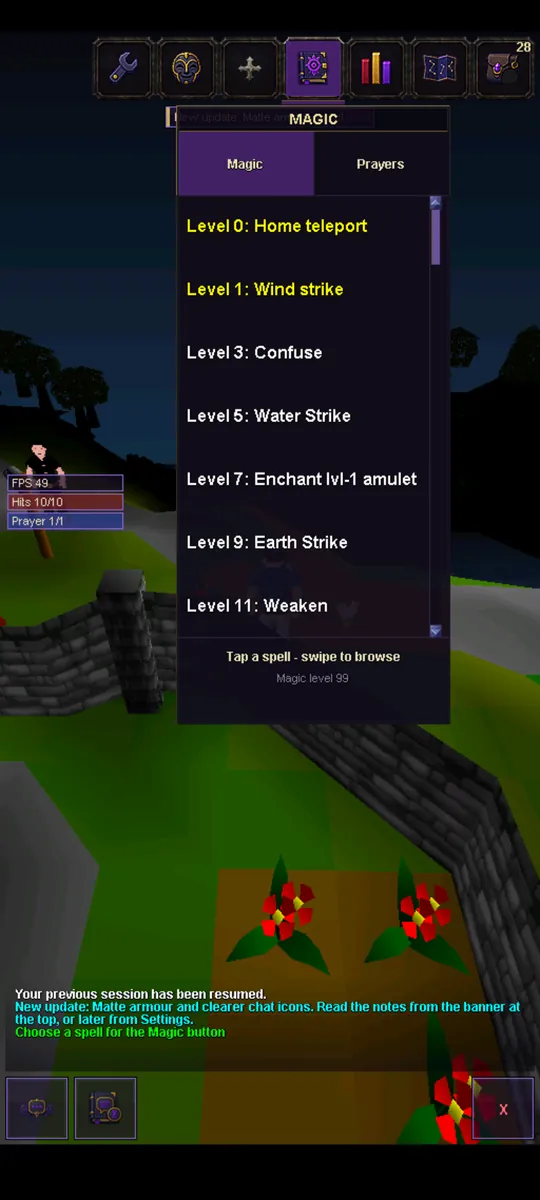
Your spell now stays selected after you cast it. Tap a monster or player to cast, then tap again to cast again, without opening the spellbook in between.
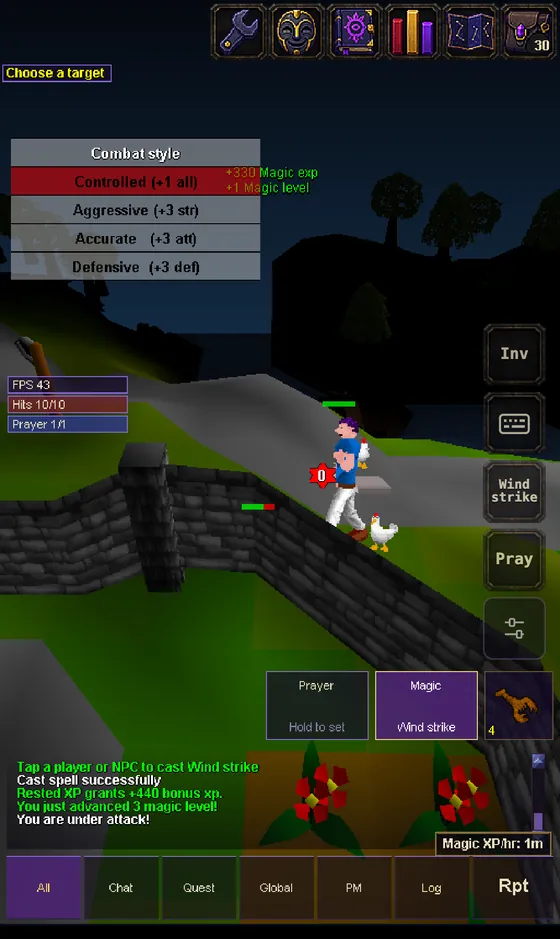
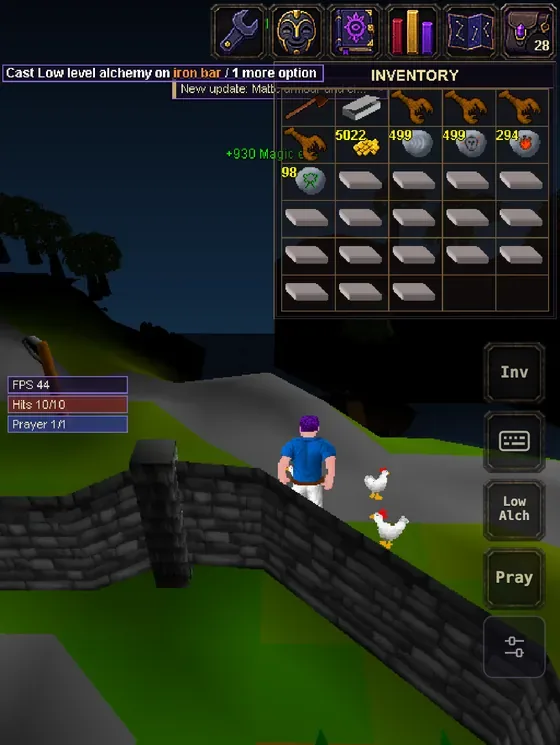
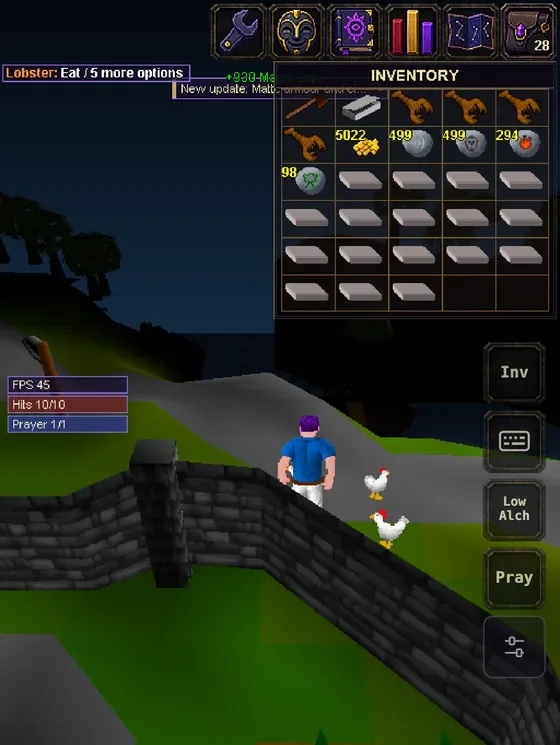
On for phones, off on computers
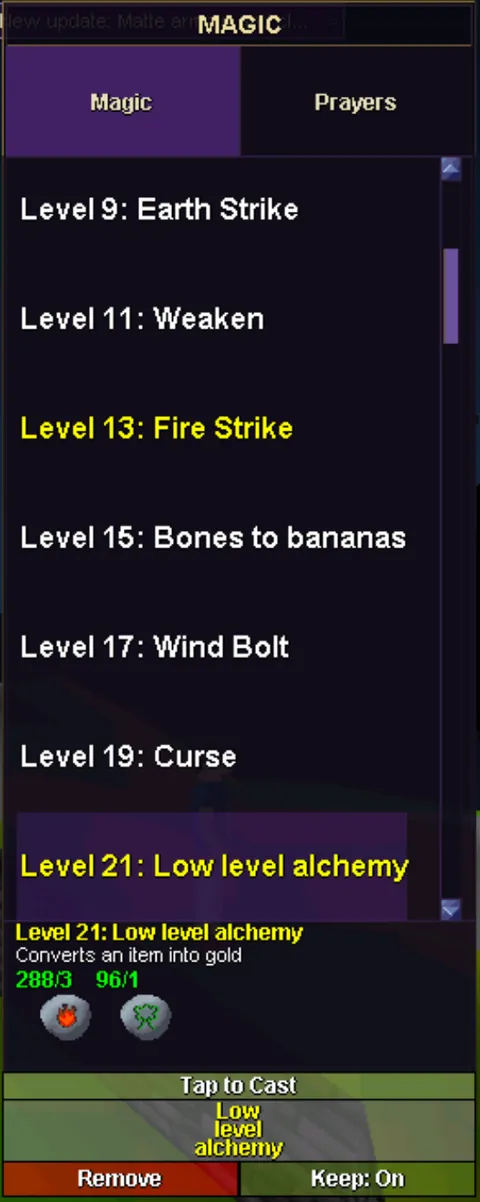
Keep selected starts on for phones and tablets and off on computers. In the Android app, switch it with the new Keep button in the Tap to Cast box under your spellbook, or in Settings → Game → Keep spell selected. In the web game and on desktop, it's in the Advanced settings window under Interface.
- Putting it away: walking, Back, Cancel, the Magic button, another spell or running out of runes puts the spell away. Eating keeps it selected, and teleports and other spells you cast on yourself are never kept.
- Alchemy and other item spells stay on the same item. Tap the next iron bar and it's alched too; tap anything else and the spell is put away, so nothing gets alched by accident.
- The Magic button stays grey until you've chosen a spell for it. Tap it or hold it to open your spellbook and pick one.
- Walk away from a spell: tap the ground to walk there, or tap Cancel, and the spell is put away. Before, you had to unselect it first.
Scrolling
Lists that keep up with you.
Scrolling was one of the most requested phone fixes. A list now moves one row for every row's height your finger travels, so whatever you touched stays under your finger. Flick it and it keeps gliding, slowing down on its own; touch it to stop.
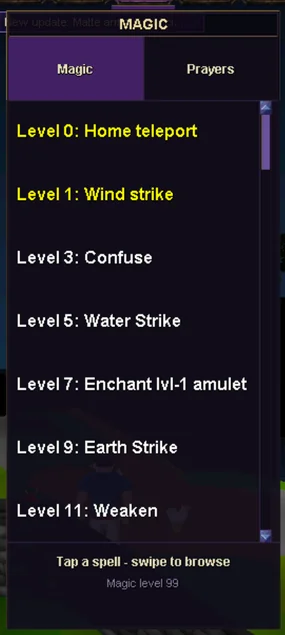
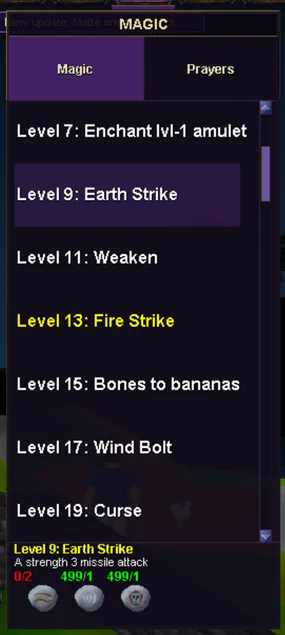
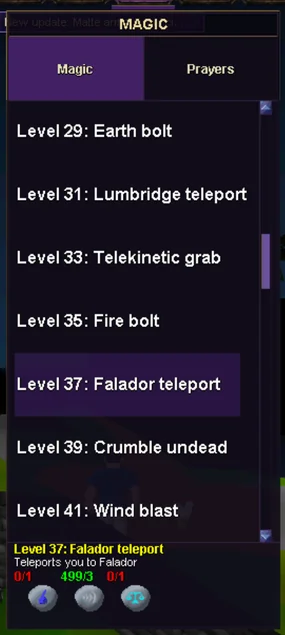
It works the same way in the Android app and your phone's browser: the spellbook, prayers, the bank, settings, chat and the other lists. Before, a swipe in the app could send a list almost three times further than your finger moved, and fast swipes in the browser counted twice. In the Android app, a swipe in the bank no longer scrolls it twice.
Stats panel · every platform
Every skill at a glance.
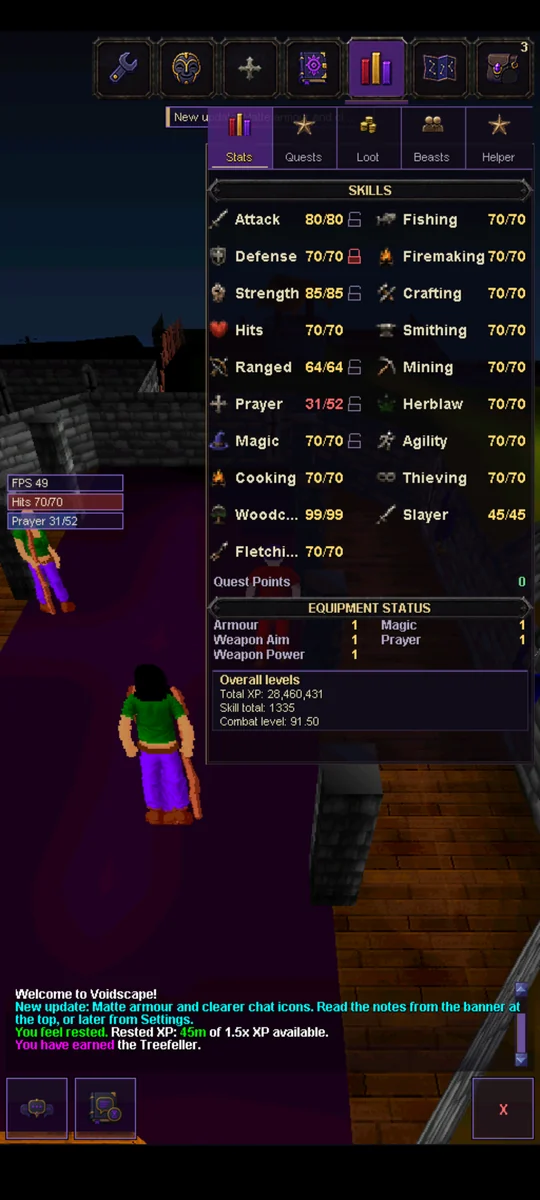
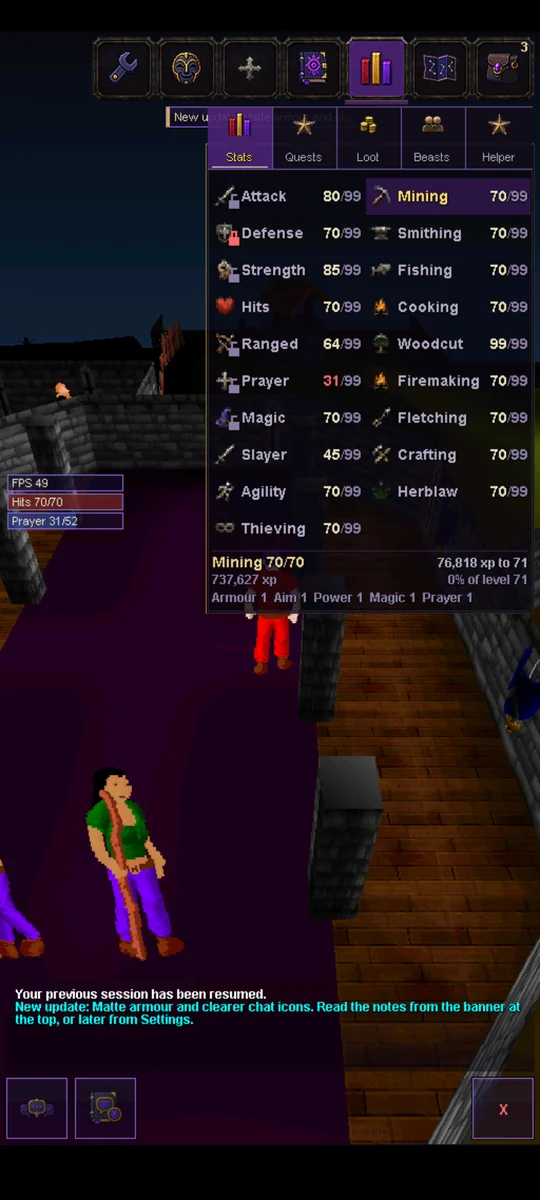
The Stats panel now shows every skill at once, grouped into combat and skilling, with each level shown out of 99. Point at a skill, or tap it on a phone, to see its XP and progress. Your totals, quest points and gear bonuses sit underneath.
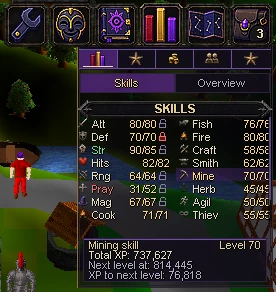
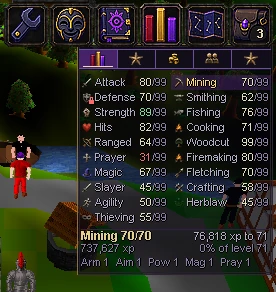
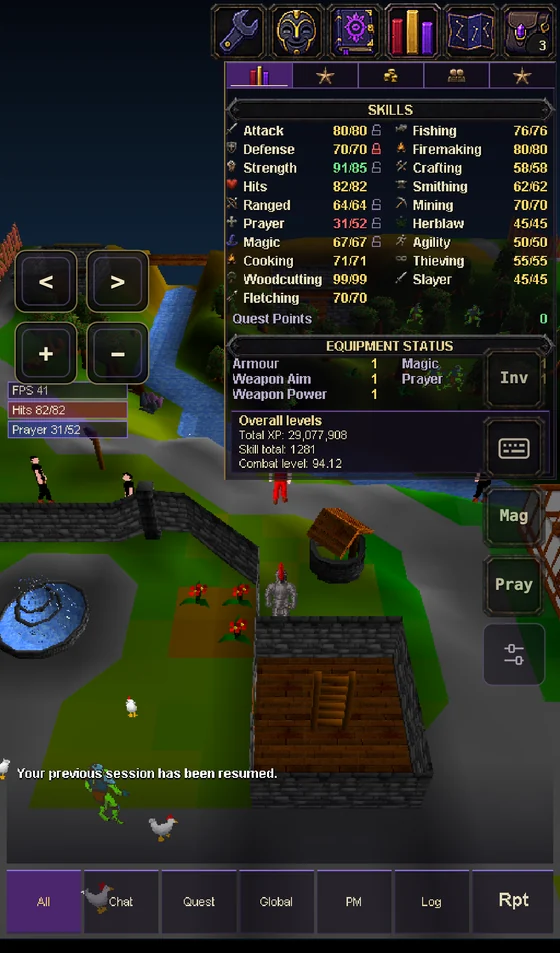
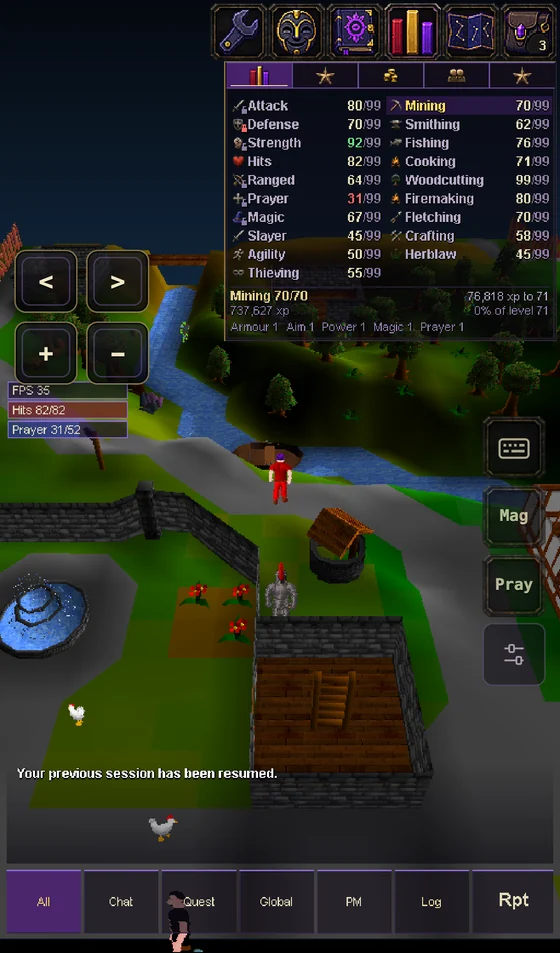
- On phones and tablets, tap a skill to see its readout, then tap it again to open its guide.
- The XP lock is now on each combat skill's icon. A red padlock means locked; click or tap the icon to lock or unlock it.
See the Stats panel in the Android app
Settings panel · computers
Your settings, tidied.
On desktop and in the web game on a computer, Settings opens with big Camera and Mouse buttons, then your privacy options, your path and XP rates, and More settings and Log out buttons.
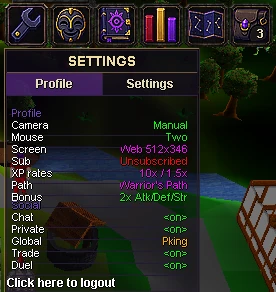
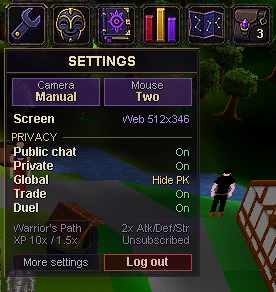
The Profile and Settings tabs are gone. More settings opens the Advanced settings window, as the Settings tab did. Phones keep their own Settings panel.
Web game on phones and tablets
Buttons that stay out of the way.
The shortcut buttons on the right no longer run into the food button, so a tap meant to eat won't open the Layout sheet. On very short screens, the spare Mag and Pray shortcuts hide first.
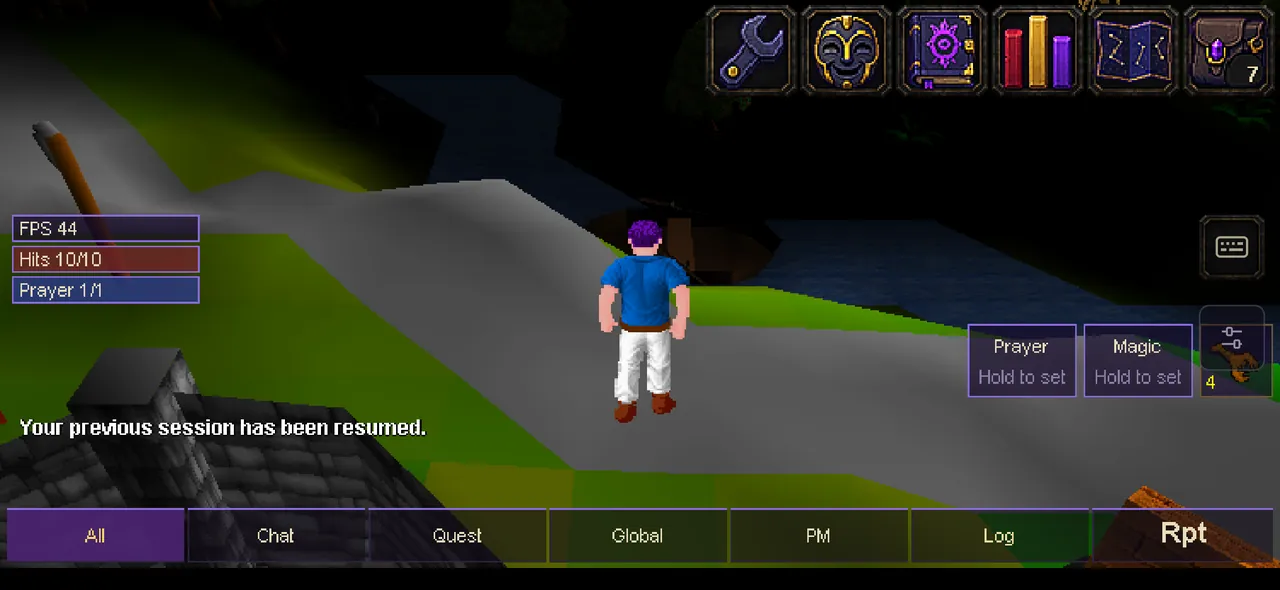
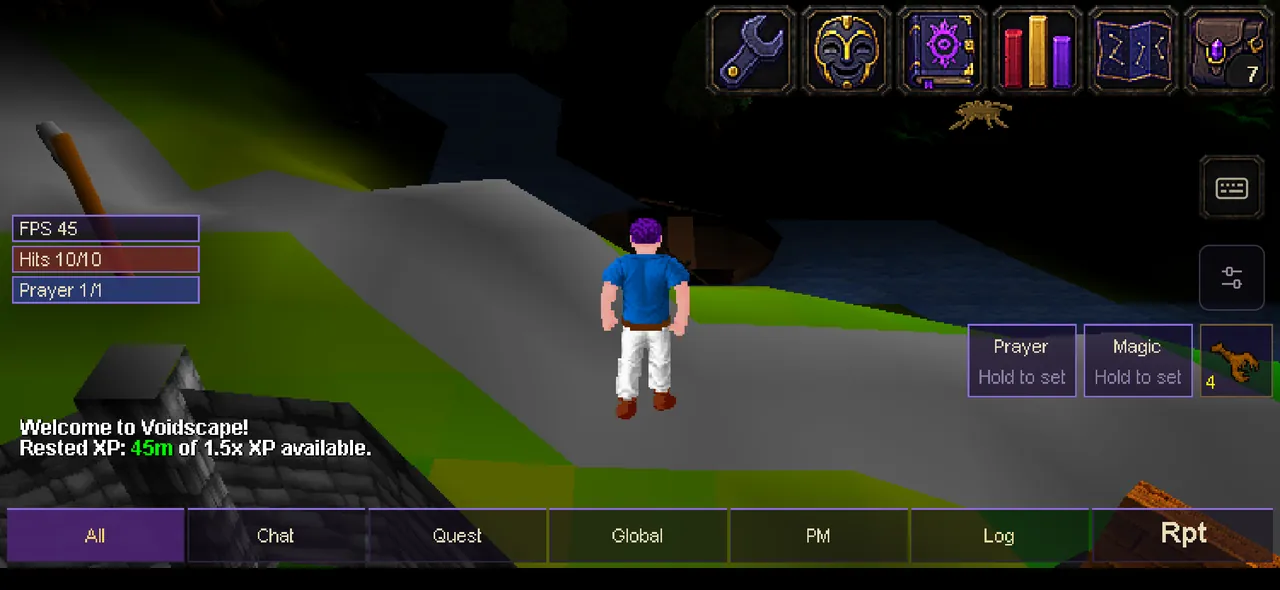
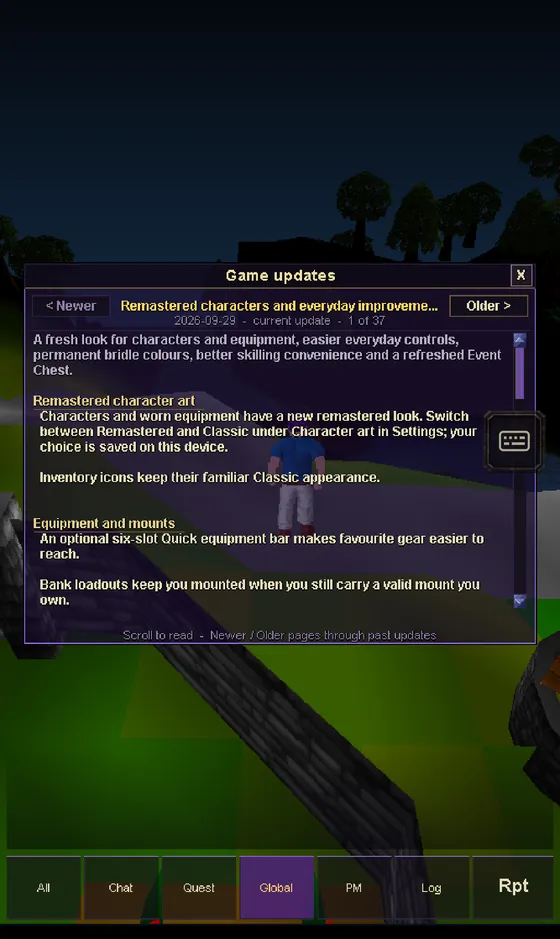
- Open panels stay clear: a shortcut that would cover an open panel steps aside, and big windows like skill guides, the bank and Game updates keep only the keyboard button.
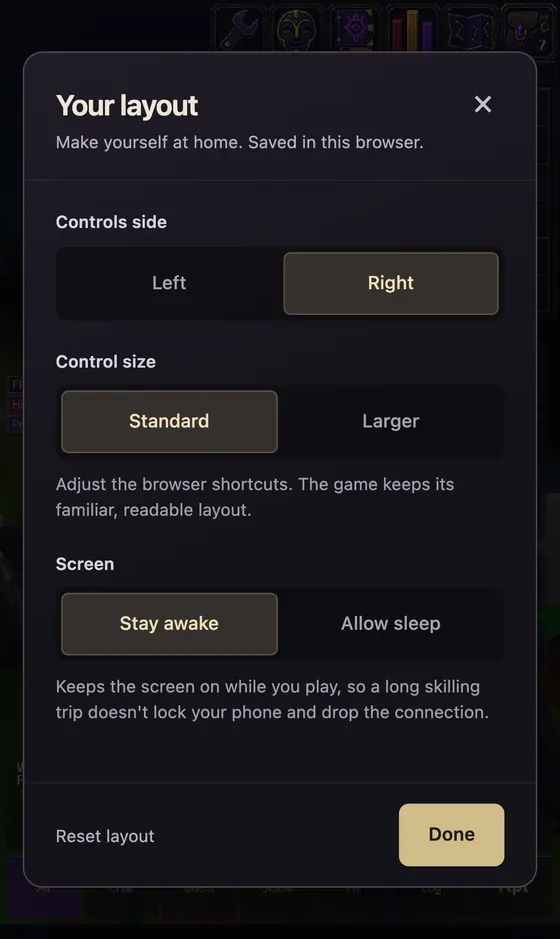
- Stay awake: a new Screen setting in the Layout sheet keeps your screen on while you're in the game, so a long skilling trip doesn't lock your phone and drop the connection. Allow sleep turns it off.
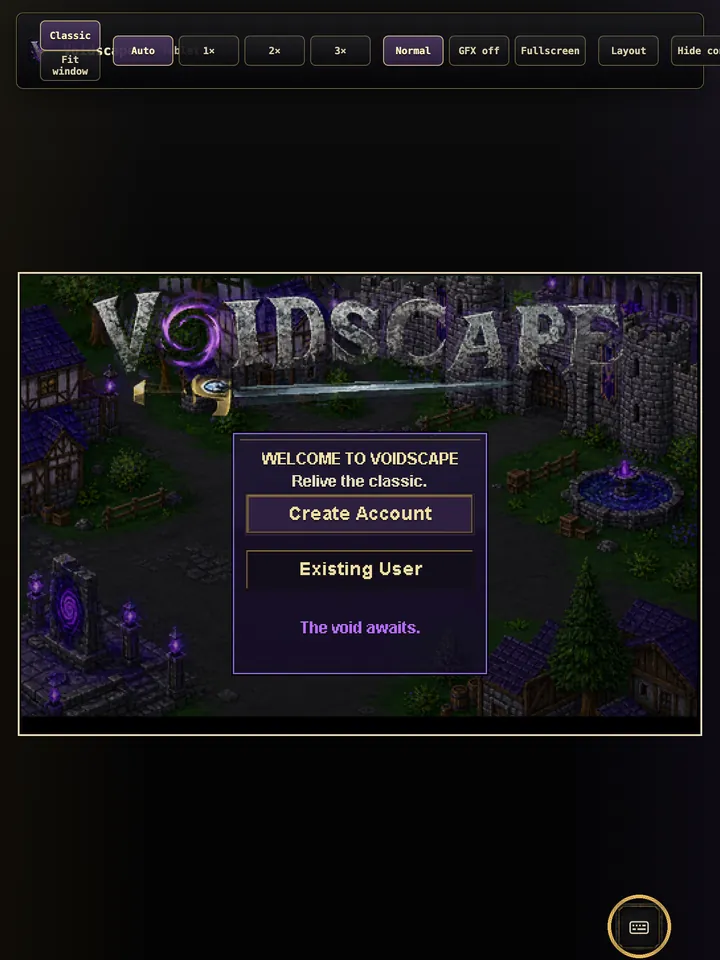
- iPads get the keyboard button, so you can type your username without a keyboard case.
- Number pad: amount boxes such as Drop X, Withdraw X and stake amounts bring up the number pad.
- Faster first load: the largest game files are now sent compressed, 5.2 MB instead of 12.5 MB.
Website
A front door for phones.
Phone visitors now get a clear way to play. On an iPhone or iPad, the home page offers Play now in Safari, with a tip for adding it to your Home Screen. Android visitors see Google Play first, then the web game, then the direct download.
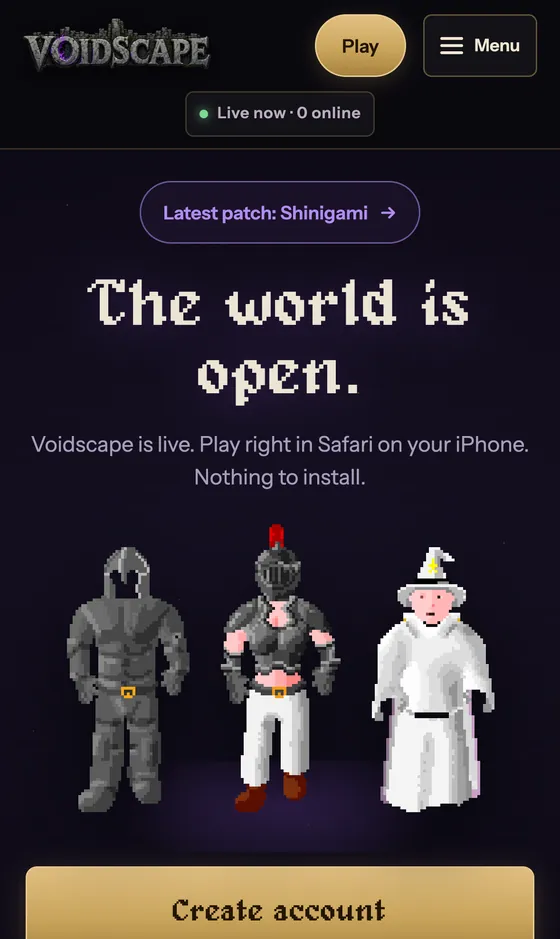
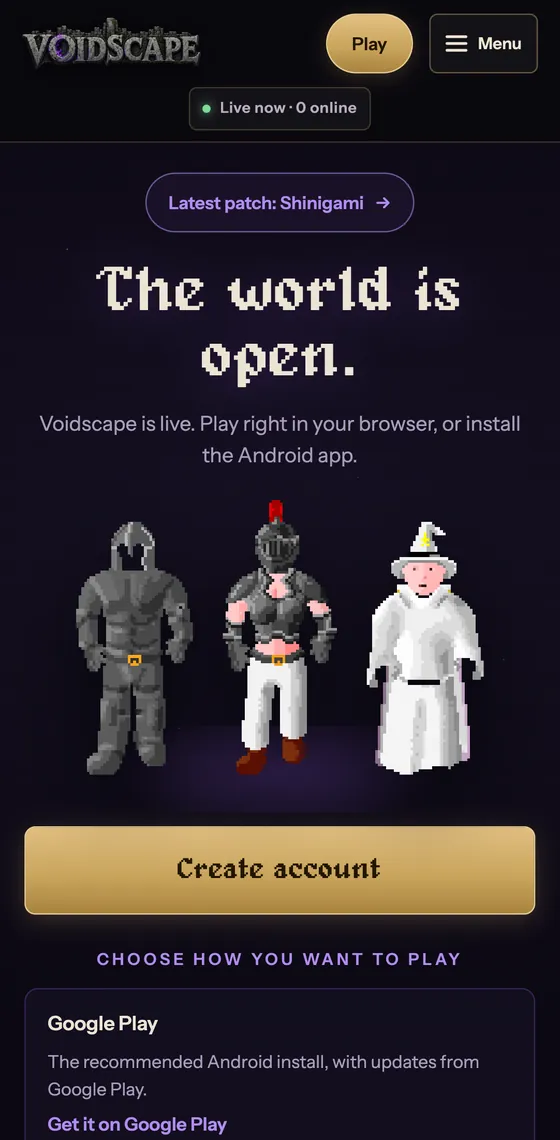
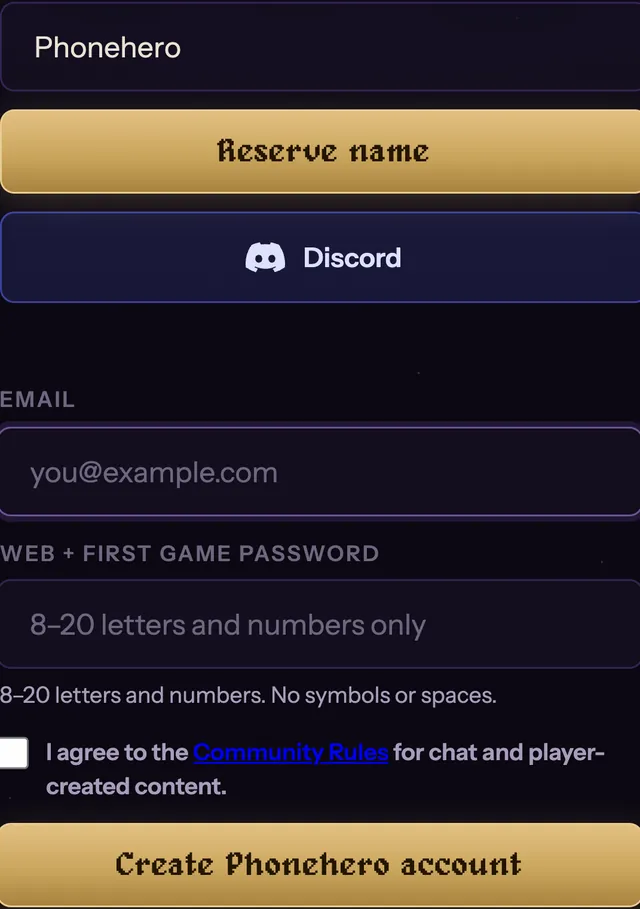
- A Play button on every page, at every screen size and at the top of the phone menu.
- Sign up with iPhone's suggested password: the form tells your iPhone the rule (8 to 20 letters and numbers), and username boxes no longer auto-capitalise or autocorrect.
- A new Home Screen icon that matches the Android app. Shortcuts you've already added keep working.
Android app 1.0.74
A steadier, fuller app.
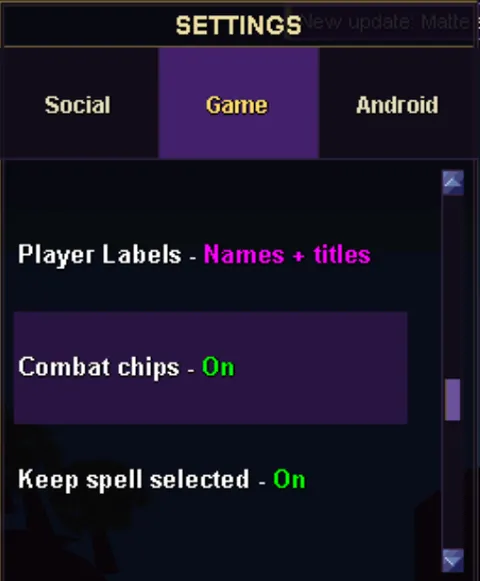
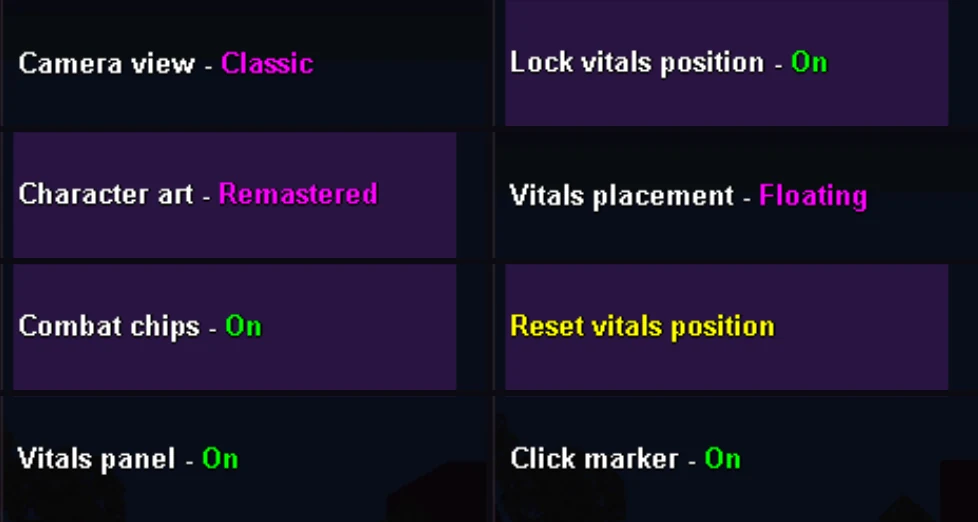
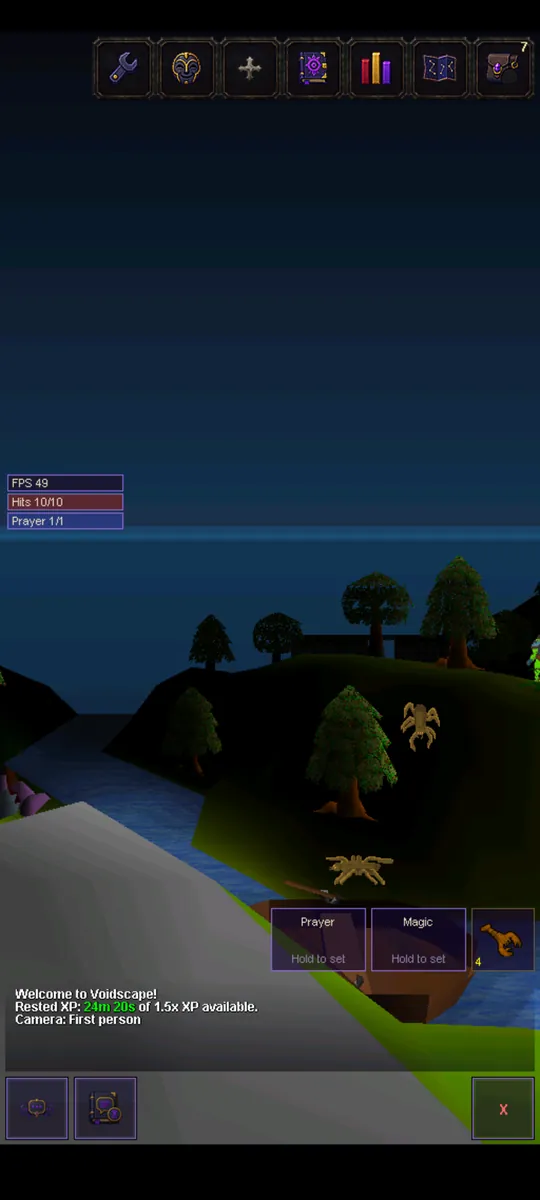
Settings that were only on desktop are now in the app: Camera view, Character art, Combat chips, four options for the vitals panel, and Click marker, which is back so you can turn the marker off again.
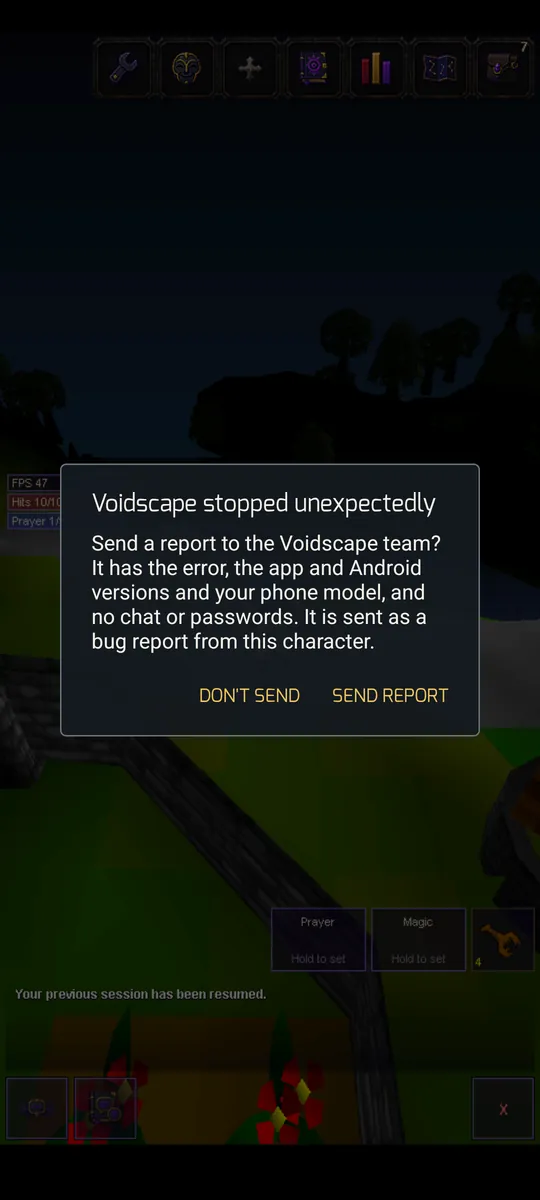
- Crash reports, only if you agree: if the app closes unexpectedly, it asks after your next login whether to send a report. It holds the error, the app and Android versions and your phone model, never chat, anything you typed or your password.
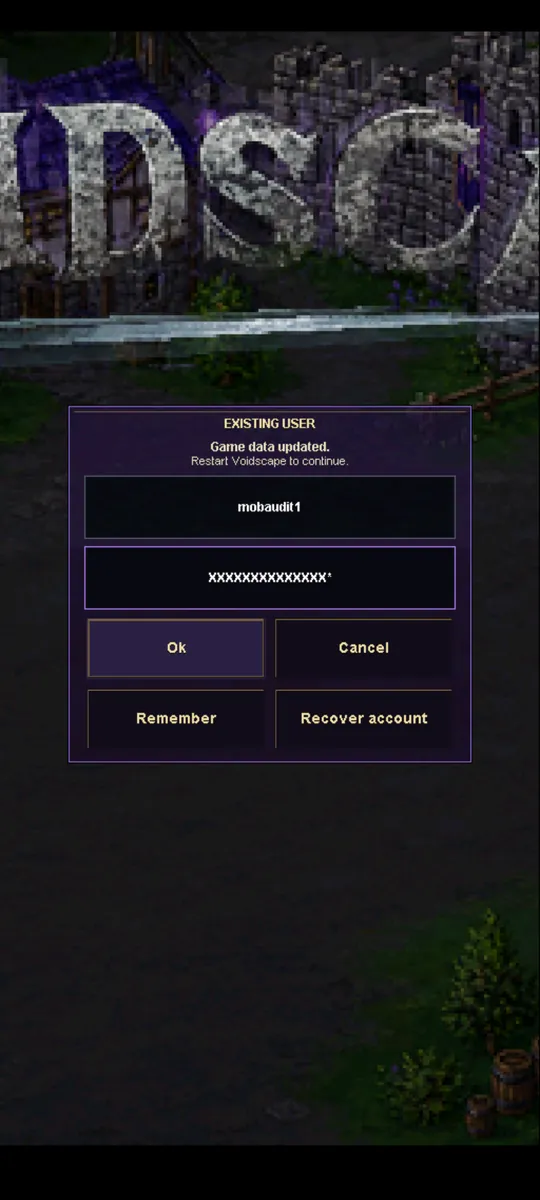
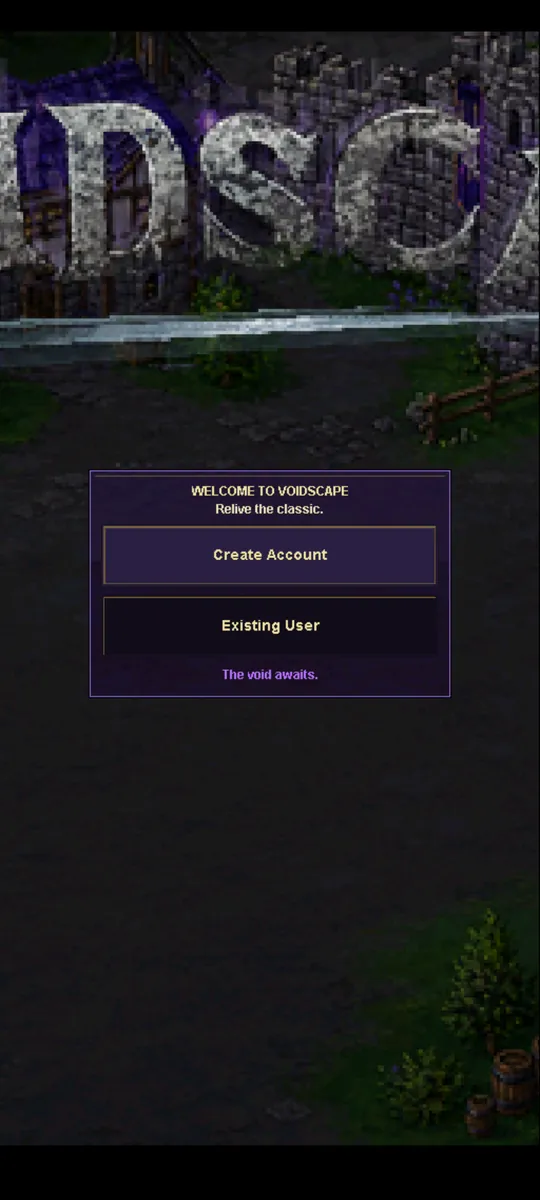
- No more getting stuck on “Game data updated”: the session restarts by itself and loads the new game data. If the app itself is out of date, it takes you to the update.
- Reopening a closed session no longer shows a black screen.
- One bad tap won't close the app. If errors keep coming, it offers to restart the session.
- Easier on your battery: sessions you've switched away from stop drawing but stay connected, and the screen only stays awake in the game.
- Android 8.0 or newer is now needed, up from Android 6.0.
See the “Game data updated” fix
From your feedback
The smaller things.
- Duel stakes on phones: you can now set the amount for a second staked item with a long press.
- Stats in the phone browser: tapping a skill on the left side of the panel no longer closes it.
- Update your client: restart the desktop launcher, reload the web game, or install Android update 1.0.74.
Update 10188 · Released September 30, 2026. Screenshots show test characters in a local preview world.